


As we herald in 2026, MS Outlook remains the pioneer in the domain of work communication. Global executives love to work on Outlook 2016 and 2019 versions. Both these versions are applauded for their technical capabilities. These versions store mailbox data such as emails, attachments, contacts, and other mailbox folders in PST (Personal Storage Table) files. PST files are the backbone of Outlook. They provide pillars of strength to the email client. But sometimes this crucial data file (.pst) becomes corrupt or inaccessible. As a result, it causes multiple issues. The user may experience a sudden freeze. They may experience messages like the “Outlook cannot …… data file” error. In a nutshell, any issue with the PST directly hampers the productivity.
No matter if you are dealing with a minor header or file structure issue or a major malware threat, you must be aware of the PST repair. It refers to a process of fixing data file (.pst) errors. And knowing each and every step of such a repair process is a must-have skill for every user. As everyone is aware of the fact that the first aid for any PST issue is ScanPST. This built-in utility is perfect for fixing minor corruption issues. Check out our guide titled “How to repair Outlook 2016 and 2019 PST Manually?” to know more. This guide will walk you through the manual steps to fix your data using ScanPST.exe. Additionally, it will also suggest when to use a PST repair tool. The guide will explain when you might need a more powerful solution like Stellar Repair for Outlook.
Signs of PST File Corruption in Outlook 2016 and 2019:
Some common signs of PST corruption are listed below:
–Outlook fails to open
— Outlook crashes frequently
— Popping up of error messages like “Outlook data …. accessed”
— Missing or inaccessible emails and folders
— Operational issues like slow performance
— Issues with sending or receiving emails
Why do Outlook 2016 and 2019 PST Files Get Corrupted?
Check the below guide to understand common culprits behind PST file corruption:
- An Oversized Data File: It may be noted that Outlook 2019 handles large files better than older versions. But it may throw errors if the pst file size exceeds 50GB.
- Abrupt Shutdowns: It is the second most common factor that can damage a PST.
- Incompatible Add-ins: Some plugins may interfere with normal operational functioning and can cause damage to the PST.
Resolving the Issue:
In this part of the post, we will shed light on several methods to fix corruption issues in the Outlook data file (.pst). Check the below guide:
Fix 1: Repair PST Using ScanPST: As discussed earlier, this built-in functionality is the first line of defence available for all Outlook users. It runs multiple scans to understand inconsistencies. After this, it diagnoses and repairs.
Follow the below steps:
- Exit Outlook
- Discover this functionality on the following locations:
| MS Outlook Version: | ScanPST.exe Location |
| 2016 and 2019: | C:\Program Files (x86)\Microsoft Office\root\Office16 |
- After locating this utility, close all allied applications.
- Exit from active processes as well, wait for some time.
- Browse the ‘Run’ dialogue box by pressing Windows + R keys.
- Type %programfiles%/Microsoft Office/ in the box. Click Enter.
- Move the cursor on the targeted PST file.
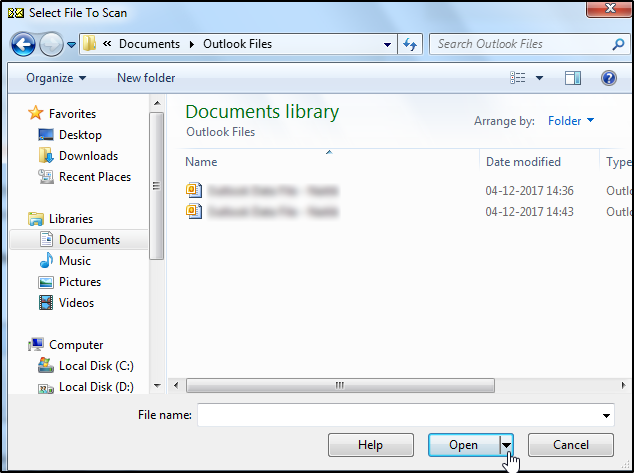
- Start the file scan process.
- This utility will highlight errors and inconsistencies in the Outlook data file (.pst).
- After inspecting errors, resolve them by pressing the ‘Repair’ button.
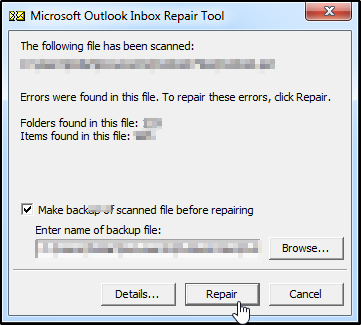
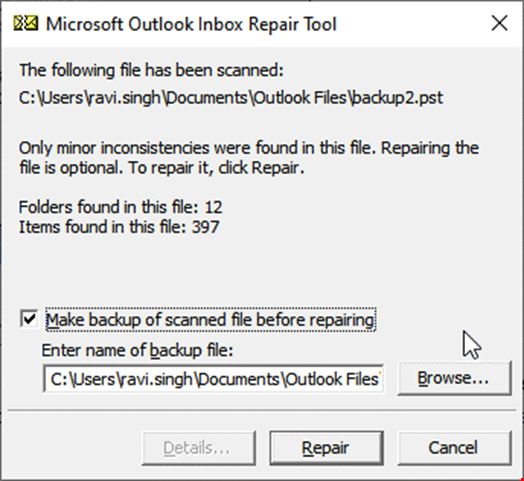
- Select the option to create the backup of the original file. Also tell the path where you want to save this backup file.
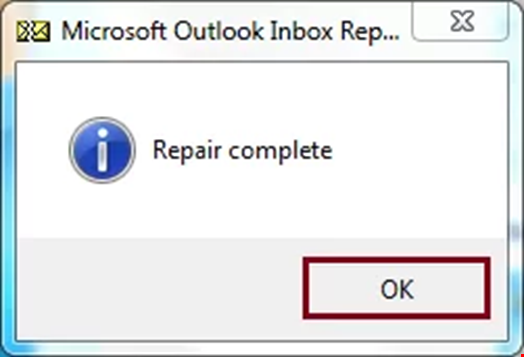
- After the completion of the repair process, check whether all email messages and other mailbox data are in order like before.
Fix 2: Create a New Outlook Profile: The user can also try to fix the issue by creating a new Outlook profile. Follow the below steps:
- Shutdown Outlook
- Exit from all allied processes running in the background
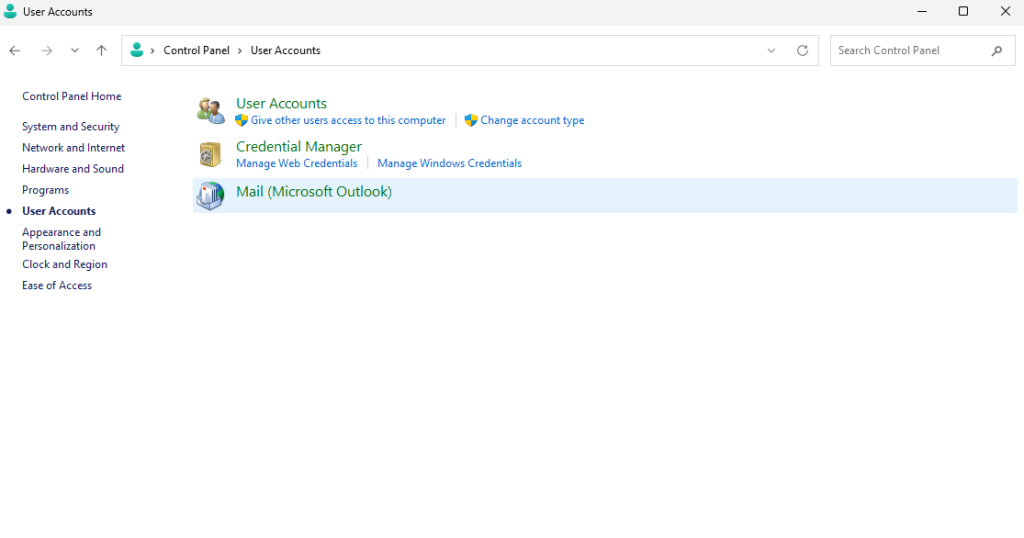
- Browse Control Panel
- Go to User Account
- Press on Mail (Microsoft Outlook)
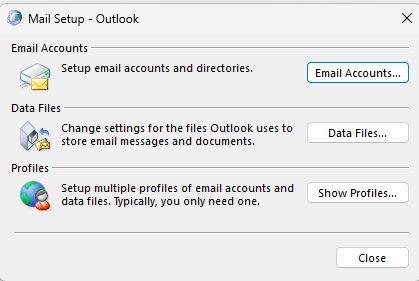
- A Mail Setup box will appear
- Go to Show profiles
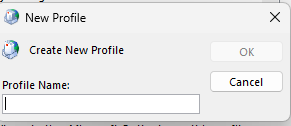
- Press Add profiles
- Name your profile
- Then press OK
- Enter Email and password
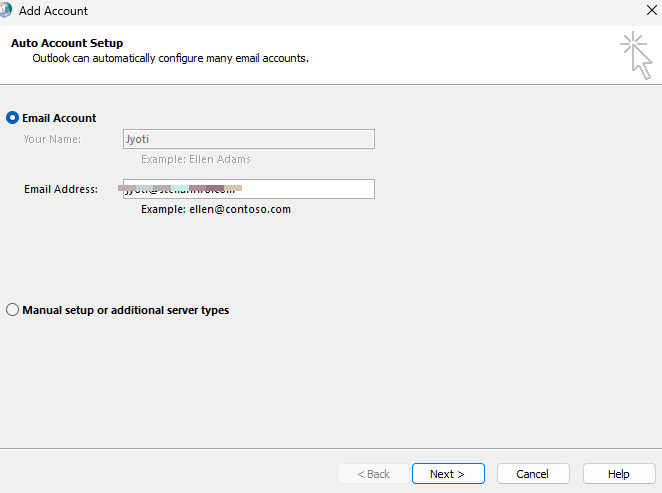
- Then hit on Next
- After account configuration, press Finish
- Return to the show profile
- Now select new profile
- Choose option reading “Always….. profile”
- Then press Apply
Limitations of Built-in Functionalities:
As stated earlier, the built-in functionalities are perfect for fixing minor issues. For instance, ScanPST can effectively fix minor structural inconsistencies in PST files. But it may fail to fix complex corruption issues like a malware attack. Some other shortcomings are listed below:
— Built-in functionalities can’t fix complex file structural inconsistencies
–They may not work in case of an oversized PST
— Also They may fail to fix “Orphaned” or Encrypted Files
— They can remove broken or severely damaged elements to restore functionality
— It may result in deleted items, as these functionalities can remove broken or severely damaged elements to restore functionality
— These functionalities are time consuming
Fix 3: Using a PST Repair Tool: We have explored that there are circumstances when manual functionalities fail. In such a scenario, data safety must be the top priority of every user. In such a case, experts strongly recommend to employ any advance PST Repair Tool. Such tools are loaded with multiple advance features. They are also user friendly. Tools like Stellar Repair for Outlook can fix inconsistencies even in an oversized PST. These tools can effectively handle severe corruption. Option of selective recovery in these professional tools is also commendable.
Benefits of Stellar Repair for Outlook:
— Gives a preview of your mailbox data before saving
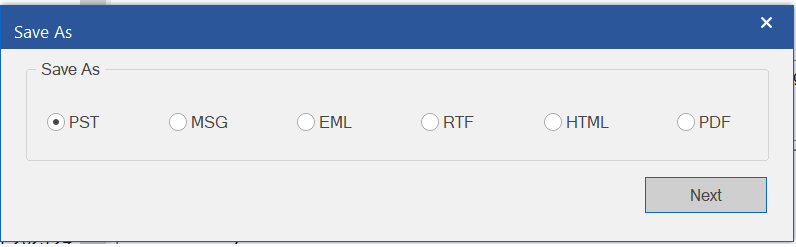
— Provides export of the repaired file in varied formats (EML, MSG, RTF, etc.)
— Equipped with a friendly GUI and advanced filter option
— Capable of repairing a damaged PST of all sizes
— Recovers all mailbox items like including emails, attachments, contacts, etc.
Decoding the Working of Stellar Repair for outlook:
Download the software and install it. Then follow the below steps:
–Launch the tool
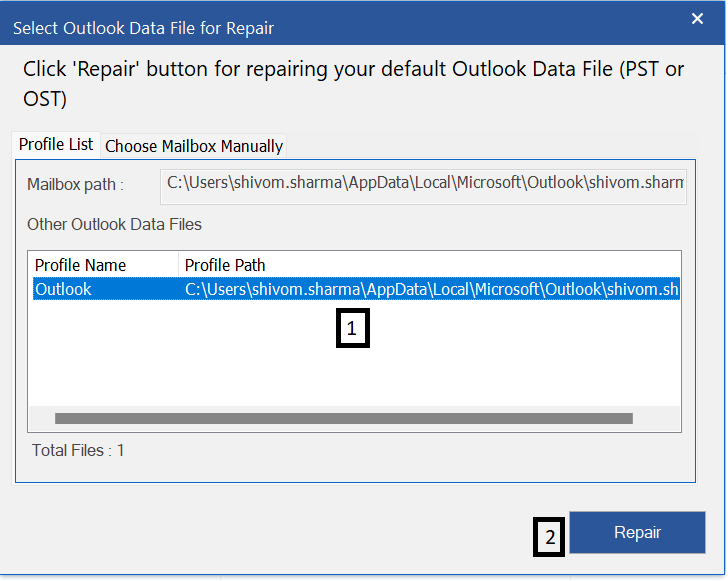
–Press the List Profiles option
–The tool will display all PST files from the default location (You also have the option to choose the PST manually)
–After selecting the targeted PST, choose Repair to start the scan
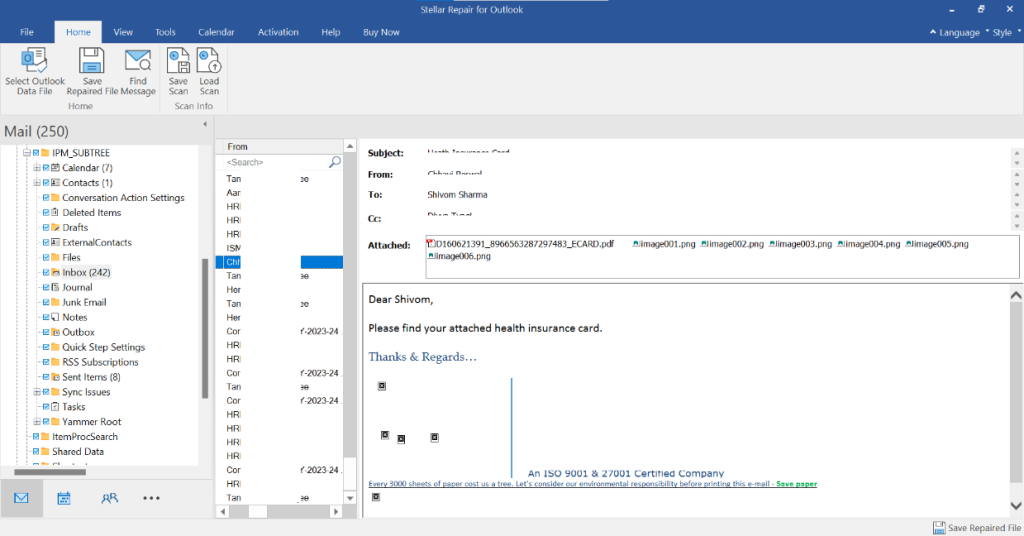
–Once the scan is finished, the tool will display all the mailbox items
–Preview and verify the items
–Select the items you want to recover
–Choose the Save Repaired File option under Home
–Now choose the desired file format from the Save As window, press Next
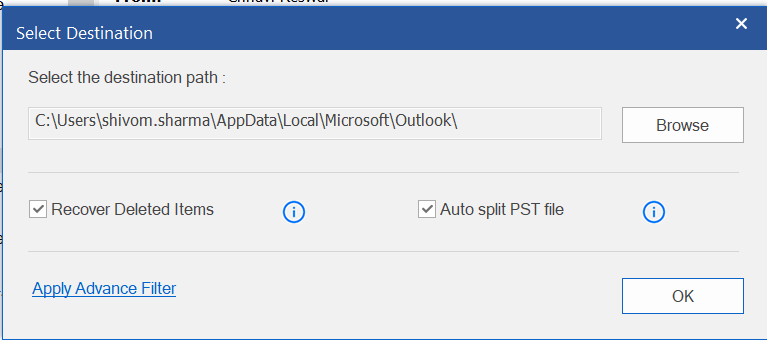
–Browse the destination path for the repaired PST and click OK
–Now the repaired file is saved, Utilize the Import and Export Wizard to import the repaired file.
Conclusion:
Every Outlook user wants to keep the status of PST as “Healthy.” But certain factors can damage this important data file. We have explored those factors in the above guide titled “How to repair Outlook 2016 and 2019 PST Manually?” We have also learned 2 built-in functionalities to repair corruption issues in the PST. The first was ScanPST, while the other way is to create a fresh Outlook Profile. But these functionalities have limitations. They can’t fix severe corruption. They may crash while fixing an oversized PST. For complete recovery of data from such files, a user needs some PST repair tool. Such software provides a more effective solution. Tools like Stellar Repair for Outlook offer deeper scanning capabilities. They promise complete recovery of mailbox data. They also maintain the original folder structure.


